VLOOKUP in Excel: Syntax, Examples & Common Errors
• Nathaniel Miller
VLOOKUP is one of Excel’s most useful functions: it finds a value in one column and returns related information from another. This guide walks through exactly how to use it, with examples, common mistakes, and when to use its modern replacement, XLOOKUP.
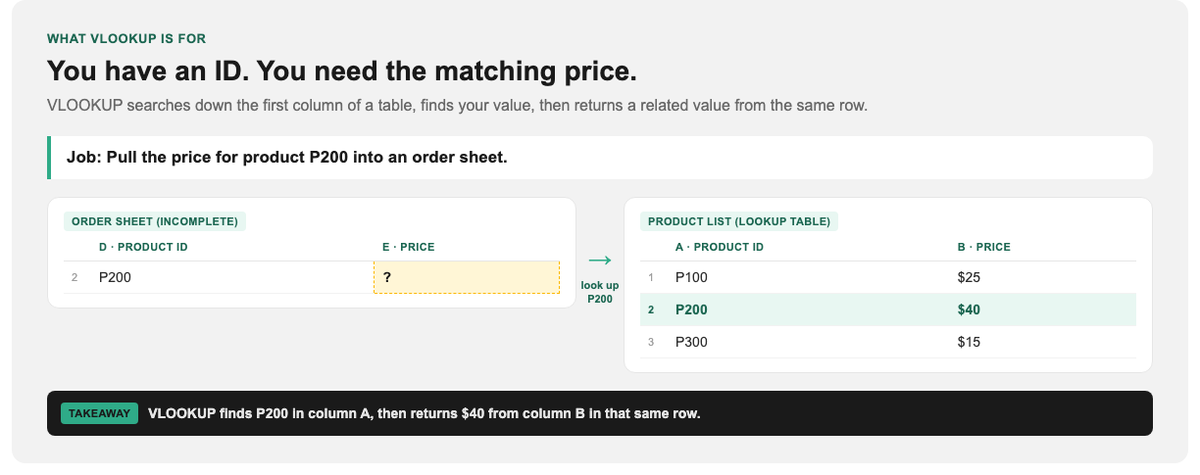
You have an ID. VLOOKUP returns the matching value from another column in that row.
What Does VLOOKUP Do?
VLOOKUP (“Vertical Lookup”) searches for a value in the first column of a table and returns a value from a column you specify in the same row. If you have ever needed to match data between two lists, say, pull a price from a product list into an order sheet, that is exactly what VLOOKUP is for.
The VLOOKUP Syntax
=VLOOKUP(lookup_value, table_array, col_index_num, [range_lookup])
| Argument | What it means |
|---|---|
| lookup_value | What you are searching for (for example, a product ID) |
| table_array | The range of cells containing your data |
| col_index_num | Which column (counting from the left of the table) holds the answer you want |
| range_lookup | FALSE for an exact match (what you want 99% of the time); TRUE for an approximate match |
A Worked Example
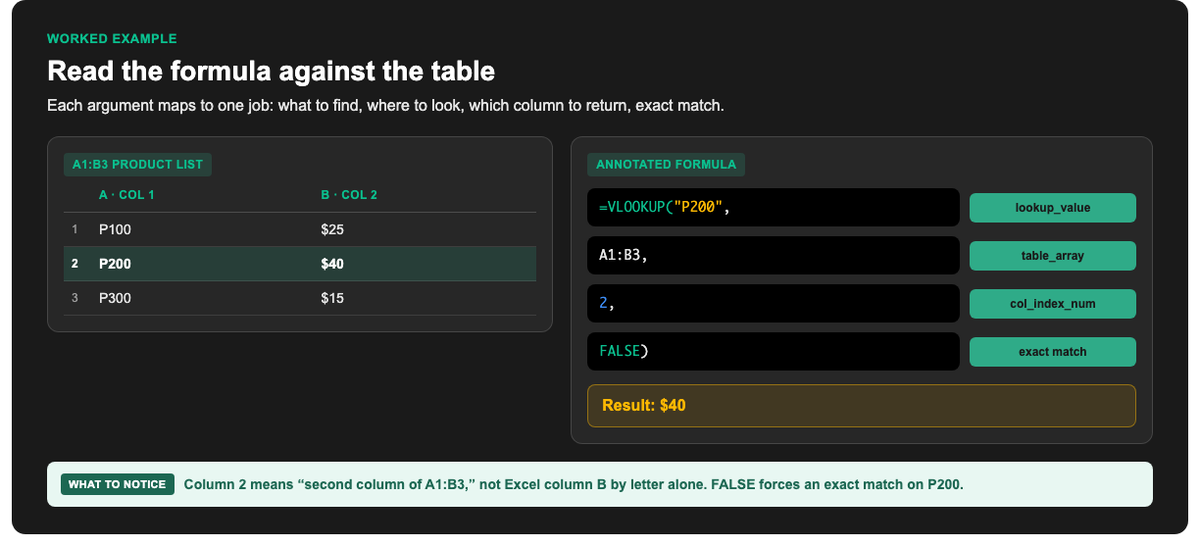
Each argument maps to one job: what to find, where to look, which column to return, exact match.
Say you have a product list in columns A and B:
| A (Product ID) | B (Price) | |
|---|---|---|
| 1 | P100 | $25 |
| 2 | P200 | $40 |
| 3 | P300 | $15 |
To find the price of product “P200”, you would write:
=VLOOKUP("P200", A1:B3, 2, FALSE)
This tells Excel: “Look for P200 in the first column of A1:B3, and return the value from column 2 (Price) in that row.” The result: $40.
Step-by-Step
- Click the cell where you want the answer to appear.
- Type
=VLOOKUP( - Enter the lookup value, either type it, or click the cell containing it (for example,
D2). - Select the table, highlight the full range of data, making sure the lookup column is the leftmost.
- Enter the column number, count from the left of your selected table to the column holding the answer.
- Type FALSE for an exact match, then close the parenthesis and press Enter.
Common VLOOKUP Mistakes
- Forgetting FALSE. Without it, VLOOKUP does an approximate match and can return wrong results. Almost always use FALSE (exact match).
- The lookup column is not on the left. VLOOKUP can only search the first column of your table_array and look rightward. If your data is arranged the other way, VLOOKUP will not work (this is where XLOOKUP shines).
- Not locking the table range. When copying the formula down, use absolute references (for example,
$A$1:$B$3) so the table does not shift. - #N/A errors. Usually means the lookup value was not found. Check for typos or extra spaces.
VLOOKUP vs XLOOKUP
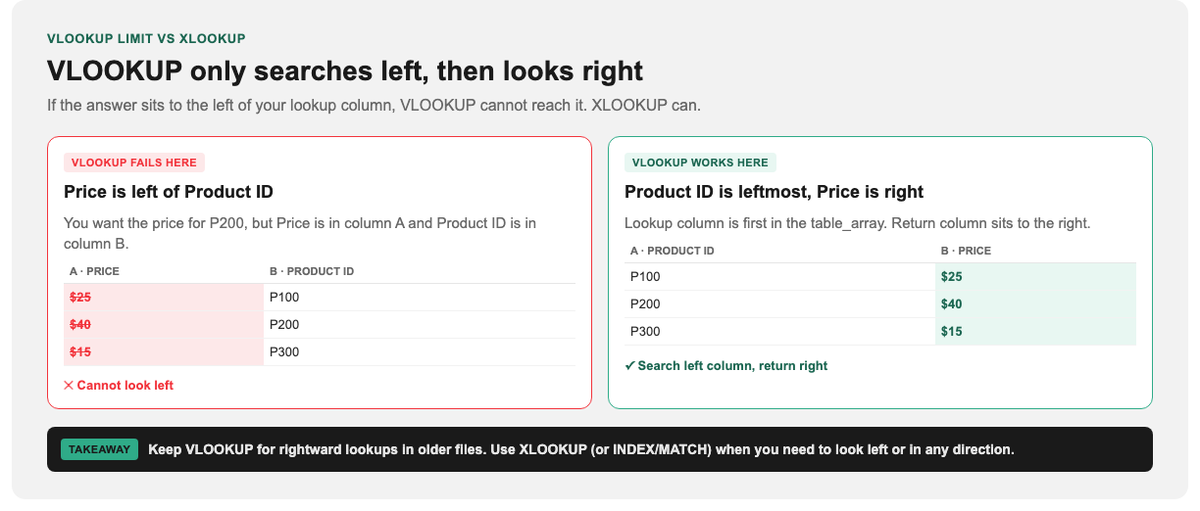
VLOOKUP only searches left, then looks right. XLOOKUP can look either way.
In modern versions of Excel (Microsoft 365 and Excel 2021+), XLOOKUP is the newer, more flexible replacement. It can look in any direction (not just rightward), handles errors more gracefully, and has simpler syntax. That said, VLOOKUP is still everywhere: in older files, shared workbooks, and countless business templates. Knowing both is the practical move.
Go Further with Excel
VLOOKUP is a gateway to Excel’s real power. Once you are comfortable with lookups, functions like INDEX/MATCH, pivot tables, and data modeling open up. StormWind Studios offers live, instructor-led Excel training where you build these skills hands-on with an expert guiding you through real scenarios, not just watching a recorded demo.
Go deeper with Excel 365 Advanced (lookup functions live here), or build fluency with Excel 365 Intermediate and Top Functions in Excel.
Frequently Asked Questions
Why is my VLOOKUP returning #N/A?
The lookup value was not found in the first column. Check for typos, extra spaces, or a mismatch between text and number formatting.
Can VLOOKUP look to the left?
No. VLOOKUP only searches the leftmost column and returns values to the right. To look left, use INDEX/MATCH or XLOOKUP.
What does the FALSE at the end mean?
It requests an exact match. TRUE (or omitting it) does an approximate match, which is rarely what you want.
Should I use VLOOKUP or XLOOKUP?
Use XLOOKUP if your Excel version supports it. It is more flexible. But VLOOKUP remains essential because it appears in so many existing spreadsheets.
How do I copy a VLOOKUP down a column?
Lock the table_array with absolute references ($A$1:$B$3) so it does not shift as you fill the formula down.