Excel Pivot Tables: 5 Steps, With Screenshots
• Nathaniel Miller
Pivot tables are Excel’s most powerful tool for summarizing data. They turn thousands of rows into a clear summary in seconds, no formulas required. This guide shows you exactly how to create one, step by step, plus the key features that make them so useful.
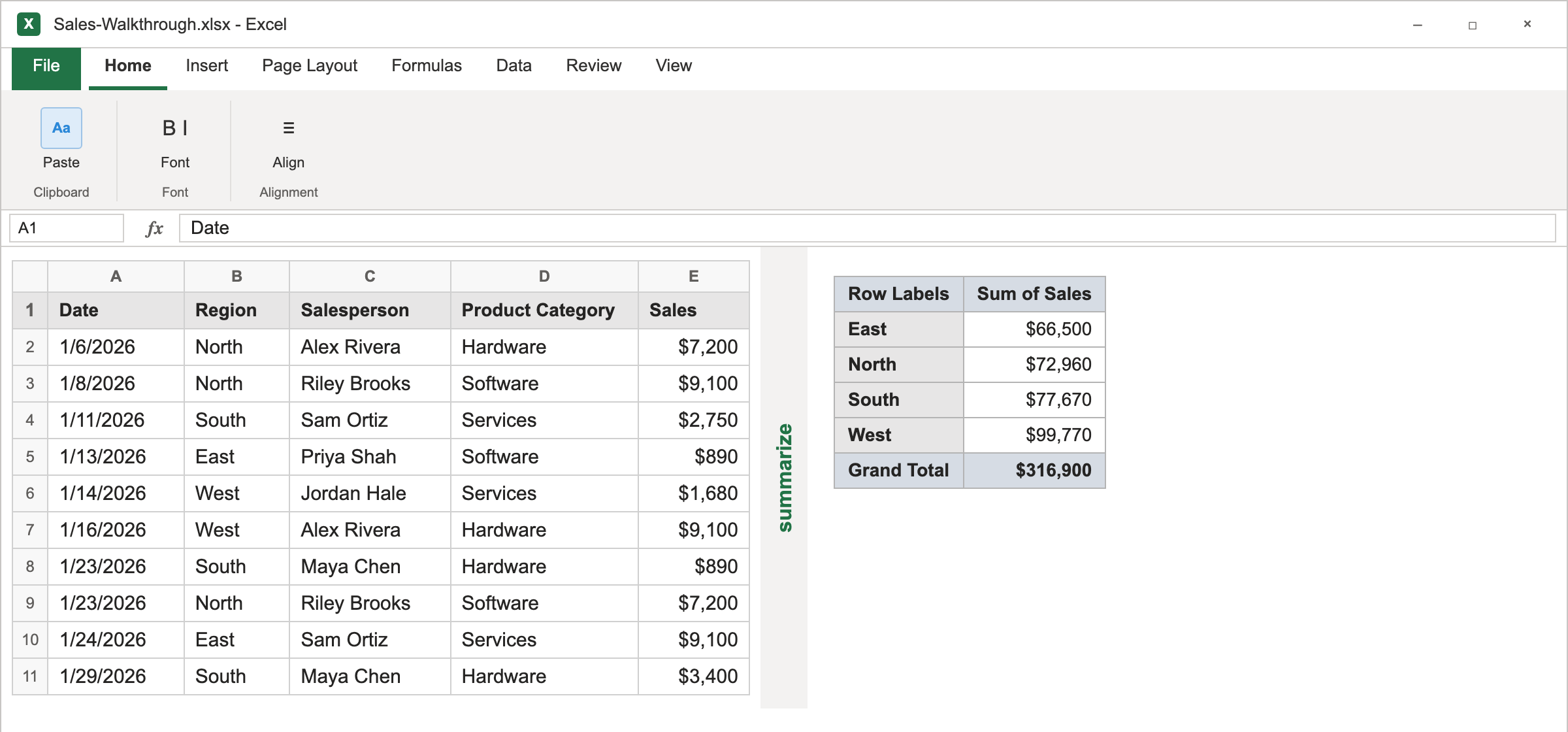
What Is a Pivot Table?
A pivot table is an interactive summary of a larger dataset. Instead of writing formulas, you drag and drop fields to answer questions like “what were total sales by region?” or “how many orders did each rep close per month?” Excel does the grouping and calculating instantly, and you can rearrange (“pivot”) the view any time to look at the data a different way.
If you have ever stared at a spreadsheet with thousands of rows wondering how to make sense of it, the pivot table is the answer. When you need to pull a matching value from another sheet instead of summarizing, start with VLOOKUP syntax and common errors.
Before You Start: Prepare Your Data
Pivot tables work best with clean, tabular data:
- Each column has a clear header in the first row
- No blank rows or columns in the middle of the data
- Each column contains one type of data (dates, numbers, or text)
How to Create a Pivot Table: Step by Step
-
Click any cell inside your data range.
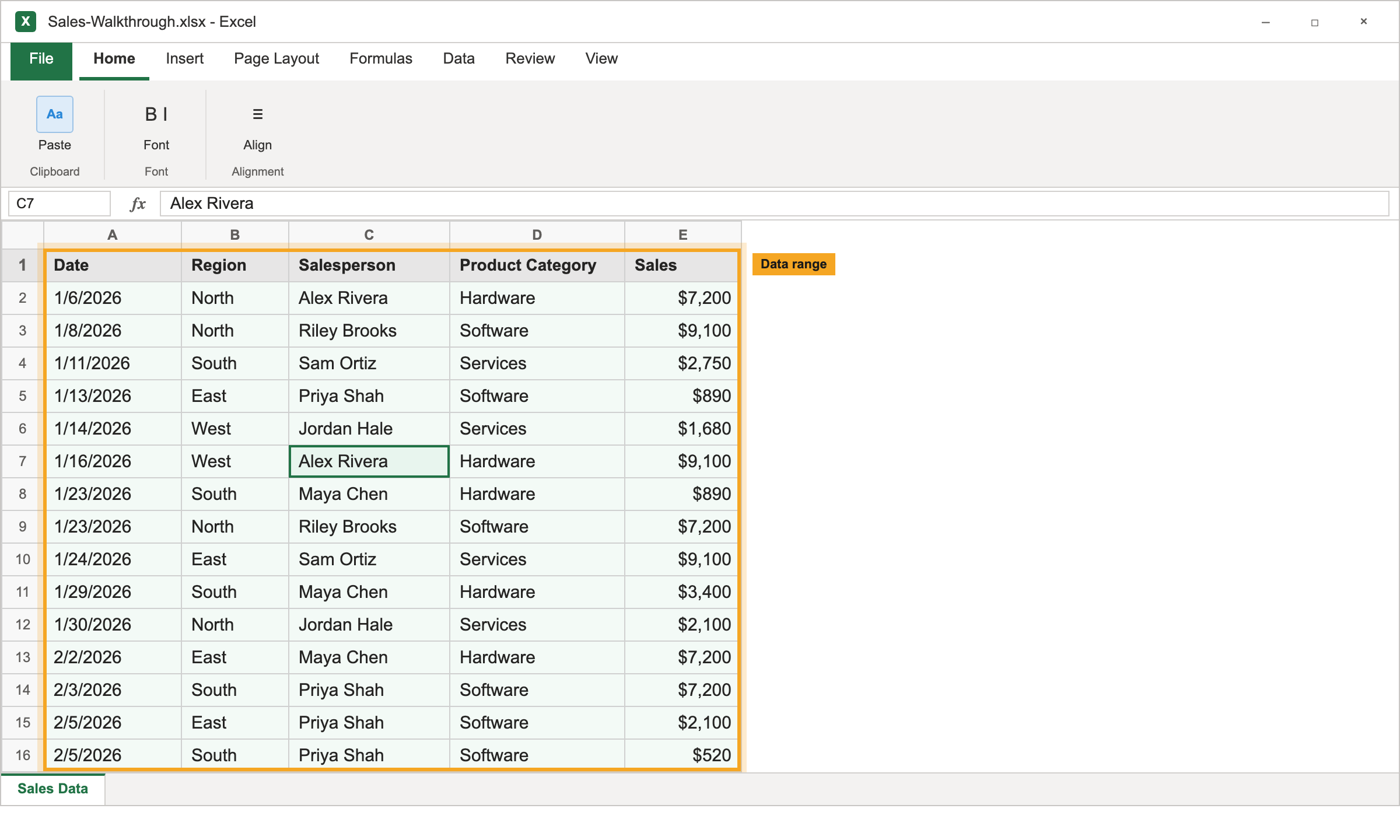
Click one cell inside the table. You do not need to select every row. -
Go to the Insert tab and click PivotTable.
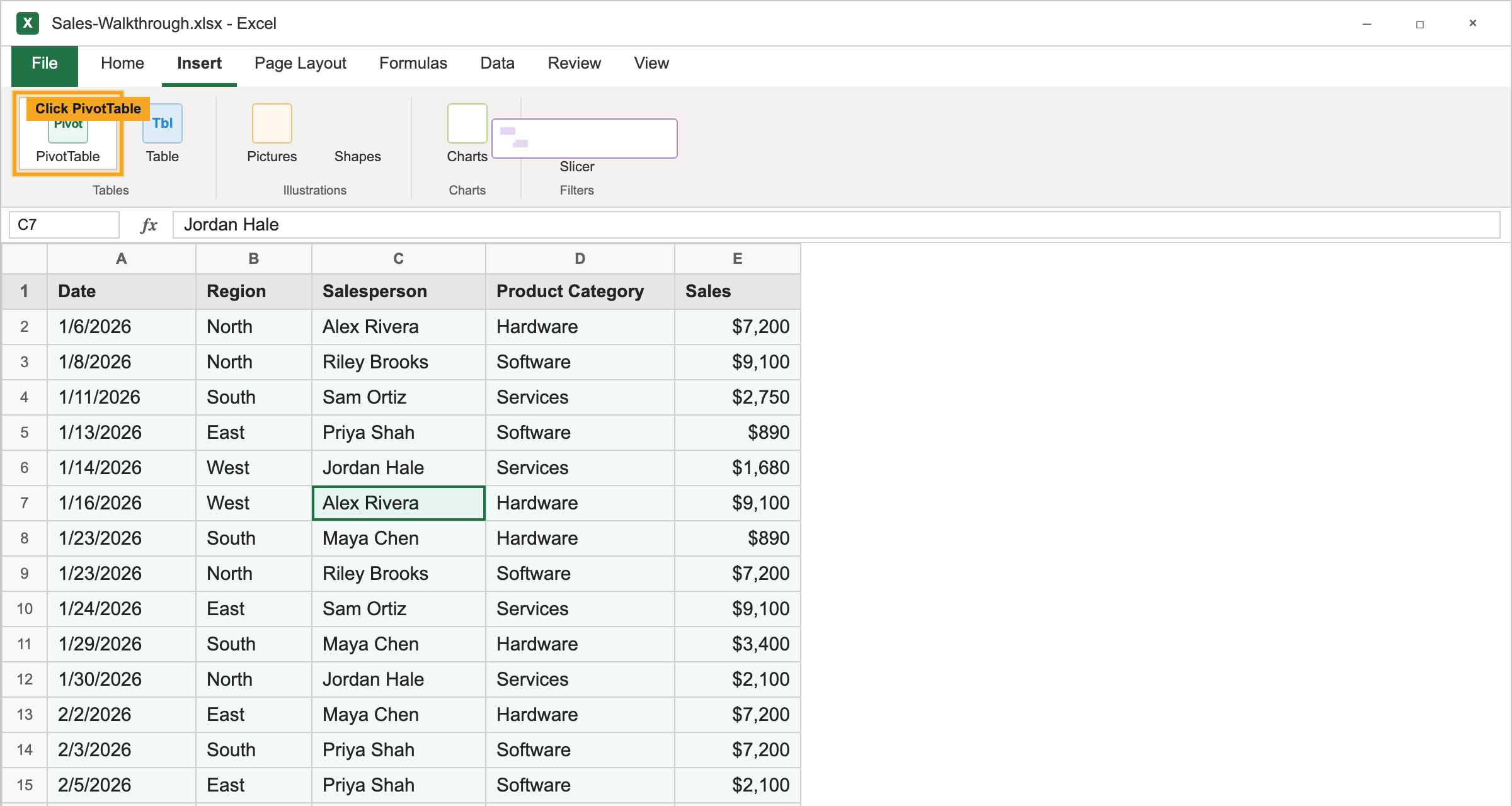
Insert sits in the ribbon. PivotTable is the first button in Tables. -
Excel auto-detects your data range. Choose where to place the pivot table (a new worksheet is usually cleanest) and click OK.
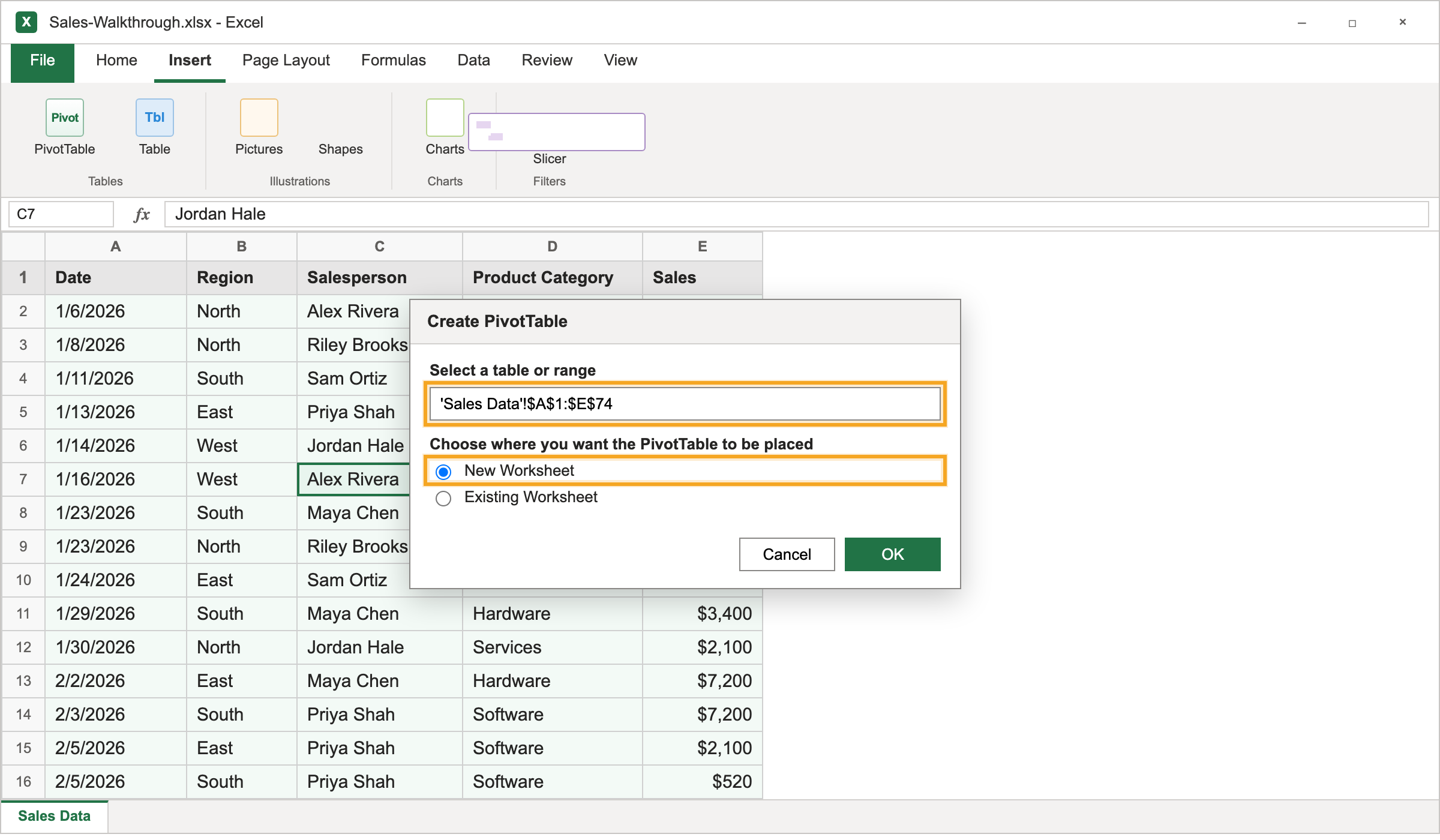
Confirm the range looks right, leave New Worksheet selected, then click OK. -
You will see an empty pivot table and the PivotTable Fields pane on the right, listing all your column headers.
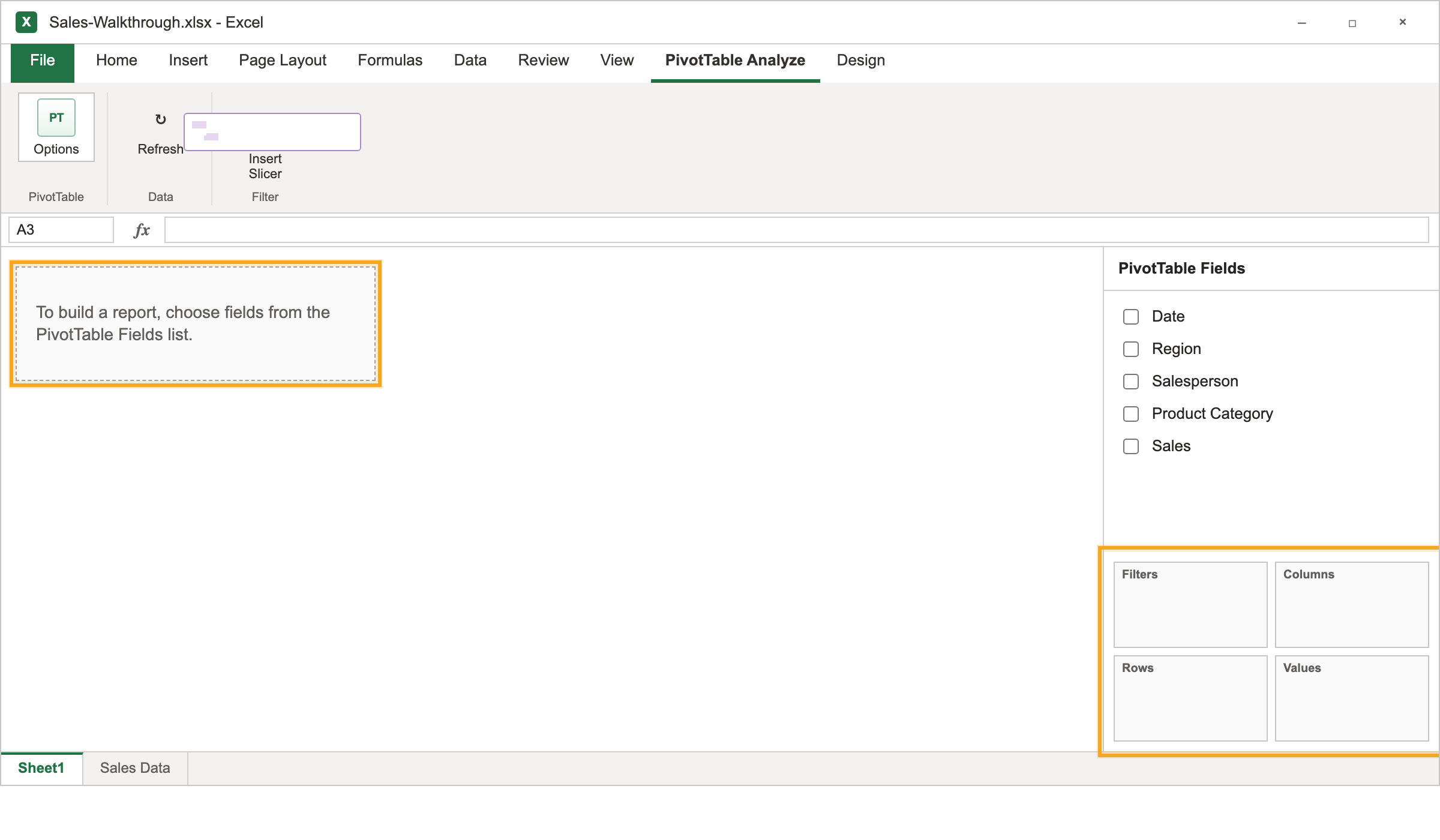
This blank canvas is normal. The report appears after you drag fields. -
Drag fields into the four areas to build your summary (explained below).
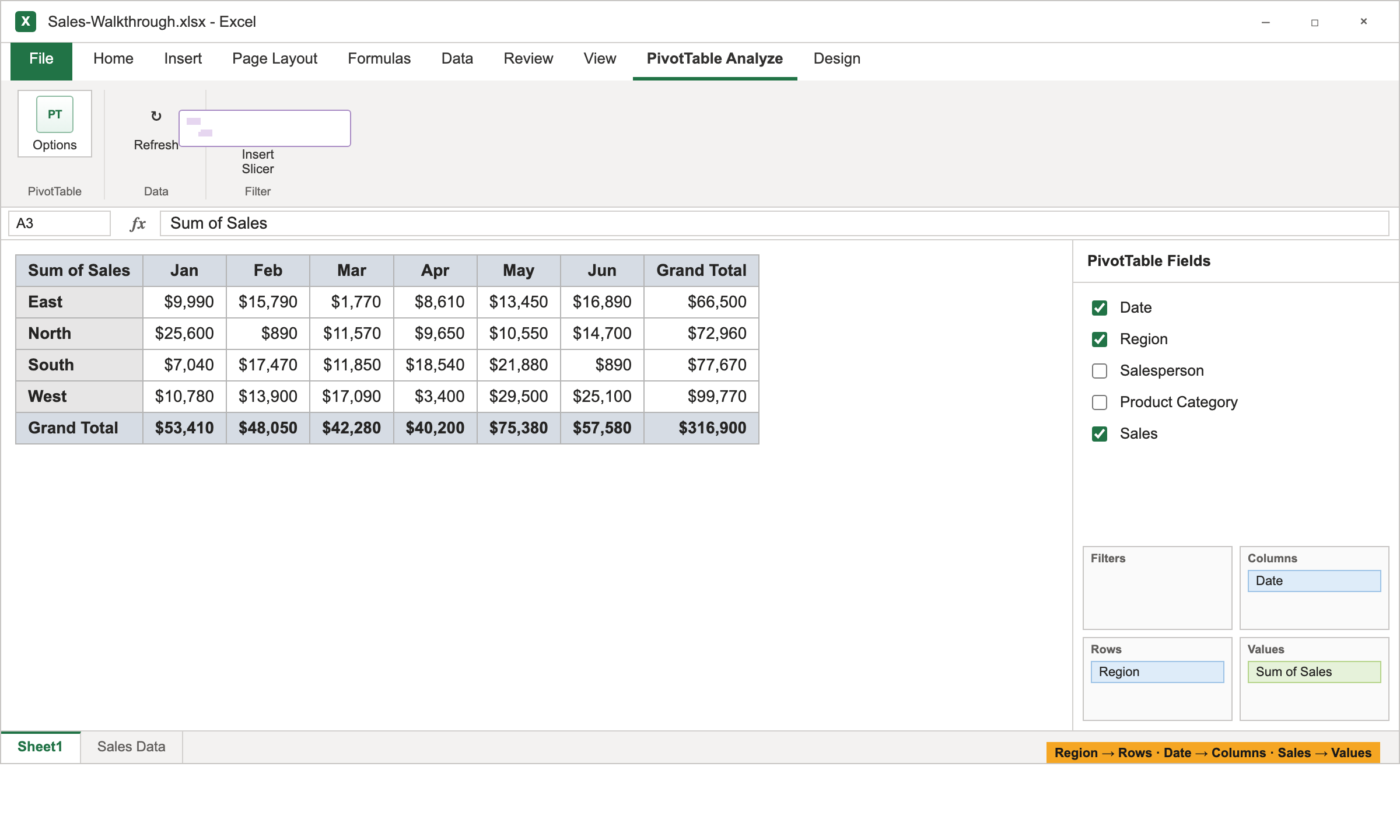
Region in Rows, Date in Columns, Sales in Values. That is the whole move.
The Four Areas That Control Everything
| Area | What it does | Example |
|---|---|---|
| Rows | Groups data down the left side | Region |
| Columns | Groups data across the top | Month |
| Values | The numbers being calculated | Sum of Sales |
| Filters | Lets you narrow the whole table | Product category |
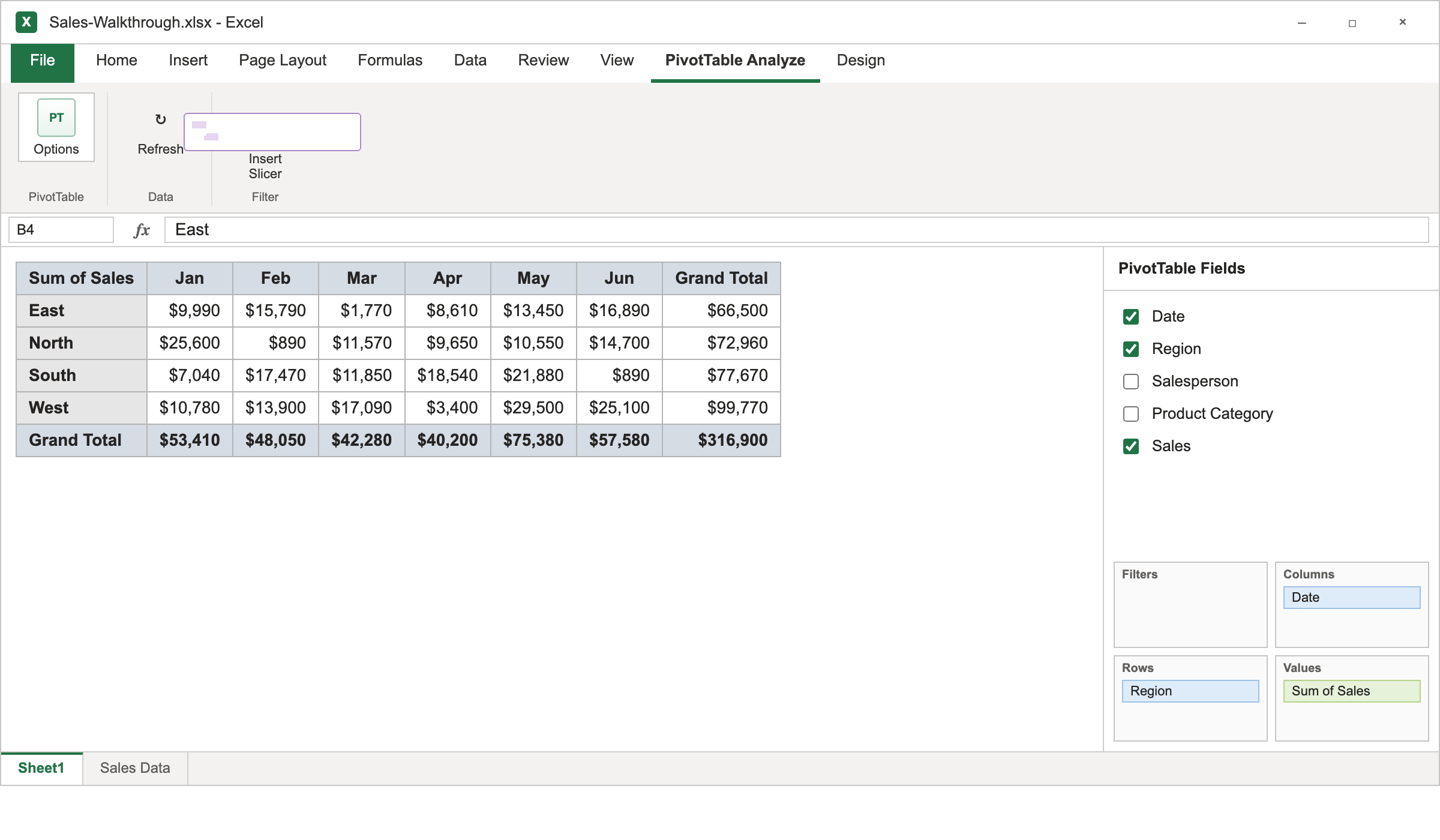
Example: Drag “Region” to Rows, “Month” to Columns, and “Sales” to Values. In one move you get a grid of total sales by region and month, a report that would take ages to build by hand.
Changing How Values Are Calculated
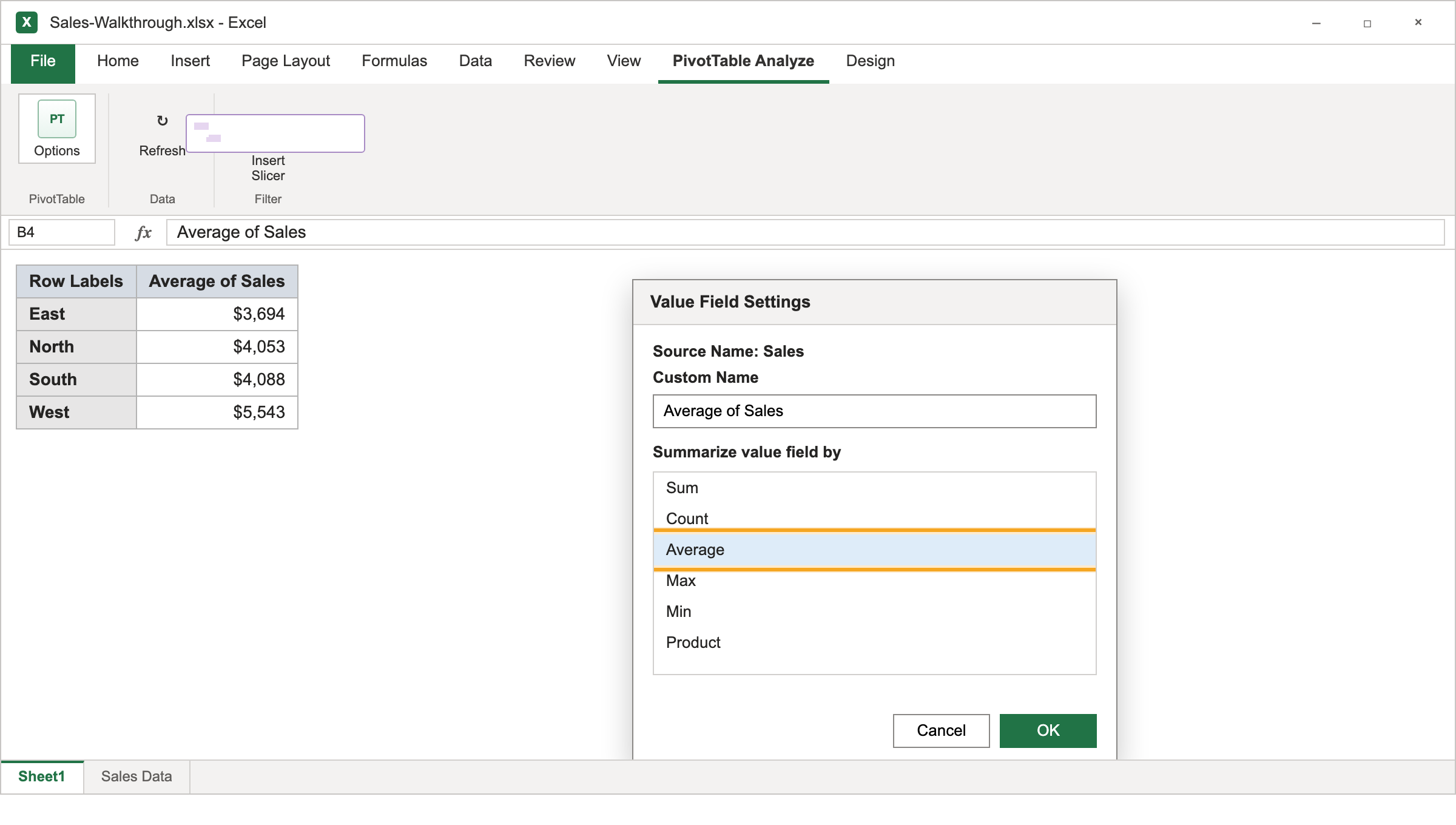
By default, Excel sums numbers and counts text. To change it, click the field in the Values area → Value Field Settings → choose Sum, Count, Average, Max, Min, and more. This is how you switch from “total sales” to “average order value” or “number of orders” instantly.
Useful Pivot Table Features
- Refresh: If your source data changes, right-click the pivot table and choose Refresh to update it.
- Grouping: Right-click dates to group by month, quarter, or year automatically.
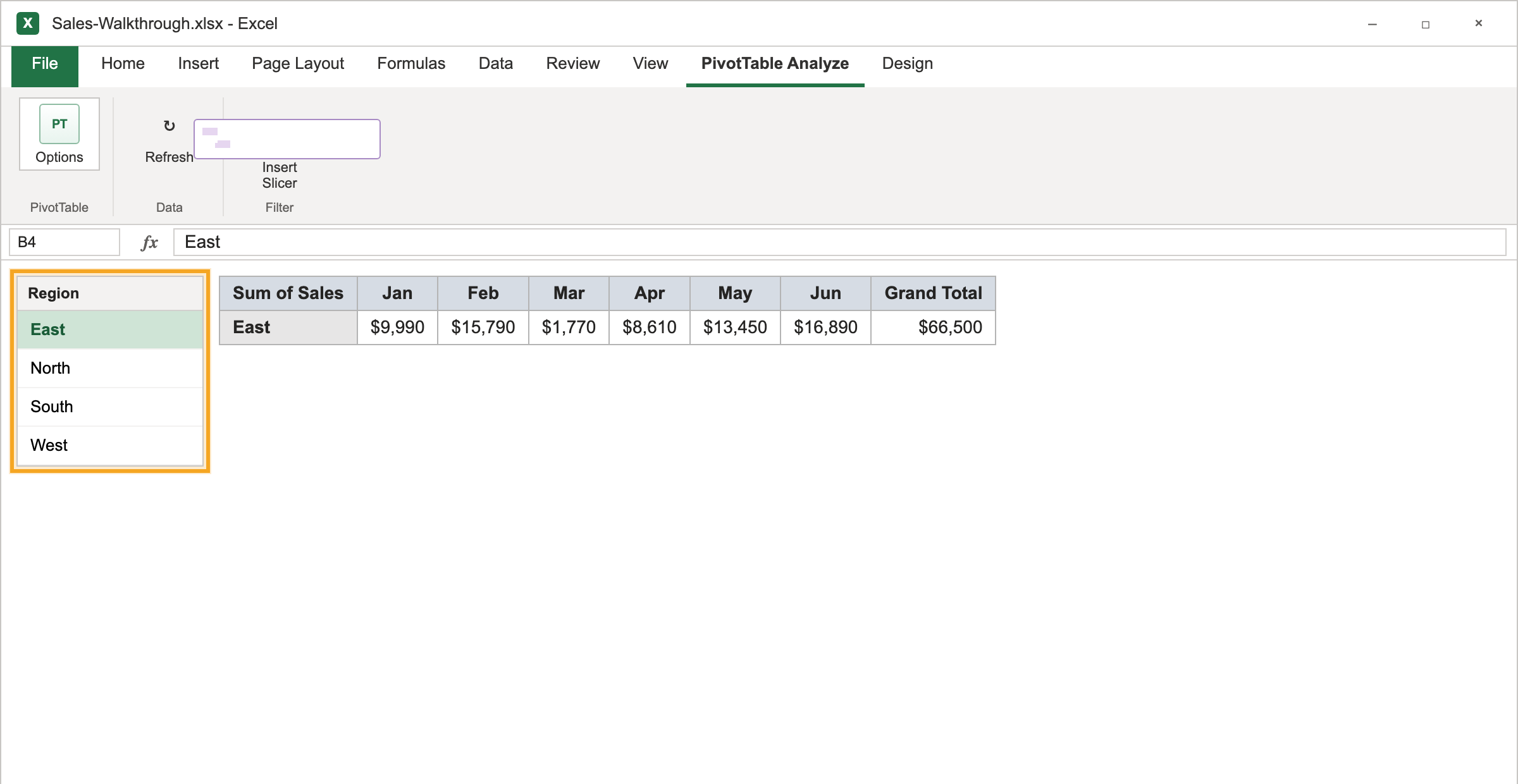
- Slicers: Insert → Slicer adds clickable buttons to filter your table visually. Great for dashboards.
- Pivot Charts: Turn your summary into a chart that updates with the table.
Common Beginner Questions
The most common frustration is a pivot table not updating when the underlying data changes. Remember, pivot tables do not refresh automatically; you have to click Refresh. The second is messy source data. If your headers are inconsistent or there are blank rows, clean those first.
Master Excel the Hands-On Way
Pivot tables click into place fast when someone walks you through building one on real data. StormWind Studios offers live, instructor-led Excel training where you create pivot tables, slicers, and dashboards alongside an expert who can answer your questions as they come up, far more effective than pausing and rewinding a video.
Start with Excel 365 Intermediate (PivotTables are a core module), go deeper with Building BI with Pivot Tables, or continue into Excel 365 Advanced for modeling and analysis beyond the basics.
Frequently Asked Questions
What is a pivot table used for?
Summarizing and analyzing large datasets: totaling, counting, and averaging data by category, without writing formulas.
Why isn’t my pivot table updating?
Pivot tables do not refresh automatically. Right-click the table and choose Refresh after your source data changes.
Do I need formulas to use pivot tables?
No. That is the point. Pivot tables do the calculating for you through drag-and-drop.
Can I use a pivot table on any data?
Almost any tabular data works, as long as it has clear column headers and no blank rows or columns breaking it up.
What is a slicer?
A slicer is a set of clickable filter buttons you can add to a pivot table for fast, visual filtering. Especially useful in dashboards.